There may be a point where you will need to transfer your system and service to a new or different Base Station, such as replacing a faulty Base Station or transferring to a new Base Station when you move.
While installing your replacement Base Station, you will need to reinstall the devices from your previous system. Please set aside ample time to complete this process.
Please ensure that you follow each step in the order they are presented, including resetting specific devices for your system before transferring service to the new Base Station.
Your Keypad (if you have multiple, choose one to follow these steps with)
Your phone
Optional: An additional computer or tablet, if you would prefer to not switch between these instructions and the SimpliSafe® Mobile App on your phone.
Ensure that your system is set to OFF, if functioning properly, by pressing OFF on the SimpliSafe® Mobile App or Keypad.
Then, power down your Base Station. To do this, remove the power cable from the bottom of the Base Station, then use your own Phillips head screwdriver to remove the screw from the base. Twist the bottom of the Base Station off to reveal the battery compartment and remove a single battery from the device. This will now power down the old Base Station.
Optional: Take note of how many devices and cameras you have associated with your system by going to My System on the SimpliSafe® Mobile Appand seeing them listed underDevice Settings and Camera Settings. You’ll need to add these back later.
Pick a Keypad from your system (if you have multiple) and slide off the backing plate to reveal the battery compartment. Remove a single battery to power down the Keypad.
Before proceeding to step 4, you’ll need to reset these specific devices (if you have any associated with your current system):
Motion Sensor Gen 2: Remove the battery to reset
Smart Locks (Original and Series 2): Remove the battery plate on the Smart Lock, then press and hold down the pairing button on the lock until all three lights begin to flash at the same time.
Outdoor Cameras: Hold the pairing button on the back of the camera for 30 seconds. The camera should chime and begin to blink white. The chime indicates a successful reset.
Smart Alarm Indoor Camera: Press and hold the pairing button (the larger button) on the top of the camera for about 30 seconds. The camera should chime and begin to blink white.
Unbox your new Base Station and power it on by plugging it into a working power outlet. Specifically, one that receives continuous power and is not linked to a light switch. Your Base Station will announce “Welcome to SimpliSafe®” which means you can proceed to step 5.
Replace the battery in the Keypad that you took the battery out of in step 2. The Base Station should announce “Keypad, Added” if it automatically connects.
If your Keypad does not automatically connect, you’ll need to use an alternative pairing method to get connected again.
If your Keypad Does Not Automatically Connect, use this Alternate Method for Pairing:
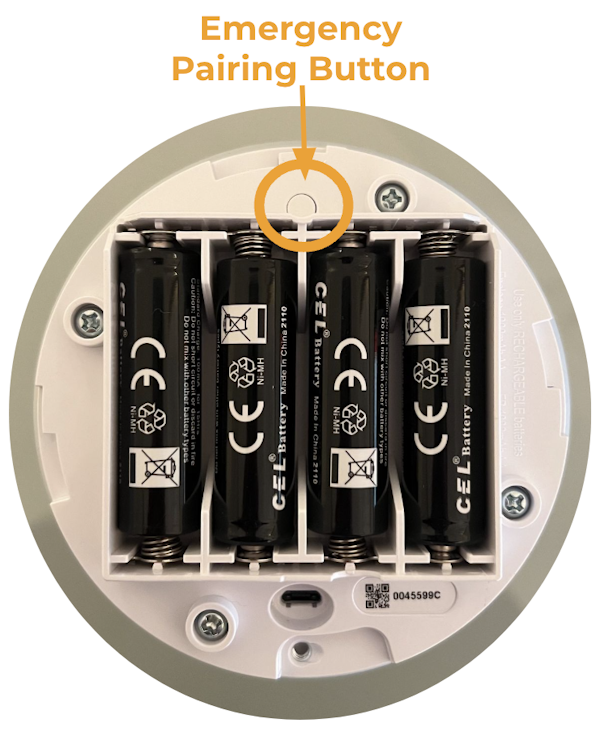
Unplug your Base Station’s power cord from the bottom of the Base Station. Then, use a Phillips head screwdriver to remove the screw.
Untwist the cover from the Base Station, but leave the batteries in place to keep it powered on.
Locate the “Emergency Pairing Button” on the bottom of the Base Station, opposite of the power cord port. You’ll press this in step 5.
Power cycle the Keypad by fully removing a single battery and reinserting it.
As soon as the Keypad screen says “Searching for Base Station”, press and release the “Emergency Pairing Button” on the bottom of the Base Station.
The Base Station will announce, “Keypad, added” if successful.
Once the new Base Station is connected to your SimpliSafe® account, you can proceed with setting up the rest of your products. You will need to add back all products from your previous system, including the ones you reset in earlier steps.
Select Get Started, then follow the in-app prompts to choose your product and add it to your system.
When your Base Station was replaced, its system and device settings were reset. You’ll want to go through your menus under the My System tab for Base Station Settings, Device Settings, and/or Camera Settings and make sure that each device is set back up to your specifications.
When your system is set up again, you’ll want to test it to make sure your system is ready to protect your home or business again.
First, you can arm your system into Home Mode by using the SimpliSafe® Mobile App or Keypad by pressing HOME. Once armed, go ahead and disarm the system by pressing OFF.
Once your system is disarmed, use your Keypad to place your system into Test Mode and test each of your devices to confirm that they are working properly. When a system with monitoring enters Test Mode, it prompts a courtesy call from the Monitoring Center and generates “User Initiated Test” on your activitytimeline within the SimpliSafe® Mobile App. Don’t worry, if you do not answer the call we won’t request dispatch. From there you can test devices by pressing their pairing button and listening for the Base Station to respond.
When you’re done, you can exit by using the Keypad.
Still Need Help?
If you run into any issues with this process, or need further assistance you canreach out to support.